Publii 0.48.x: Multiple windows, a rebuilt WordPress importer and a local preview server
 Bob Mitro
Publii 0.48.0 lets you work on different websites in separate windows, preview them through a local HTTP server, and bring more of an existing WordPress site into Publii with a rebuilt importer.
We've also added AVIF image conversion, rebuilt the menu editor and extended editing and linking tools across the app. The release includes keyboard accessibility improvements and fixes for image handling, publishing and site management.
Work on several websites at once
If you manage more than one website, you can now keep each one open in its own Publii window. This lets you leave a post open on one site while checking settings or working on another.
You can also choose a different interface colour for each website. Go to Site Settings and pick one of the predefined accents under Interface colour. Publii remembers your choice for that site, so you can tell its window apart from the others at a glance. The colours work in both light and dark modes.
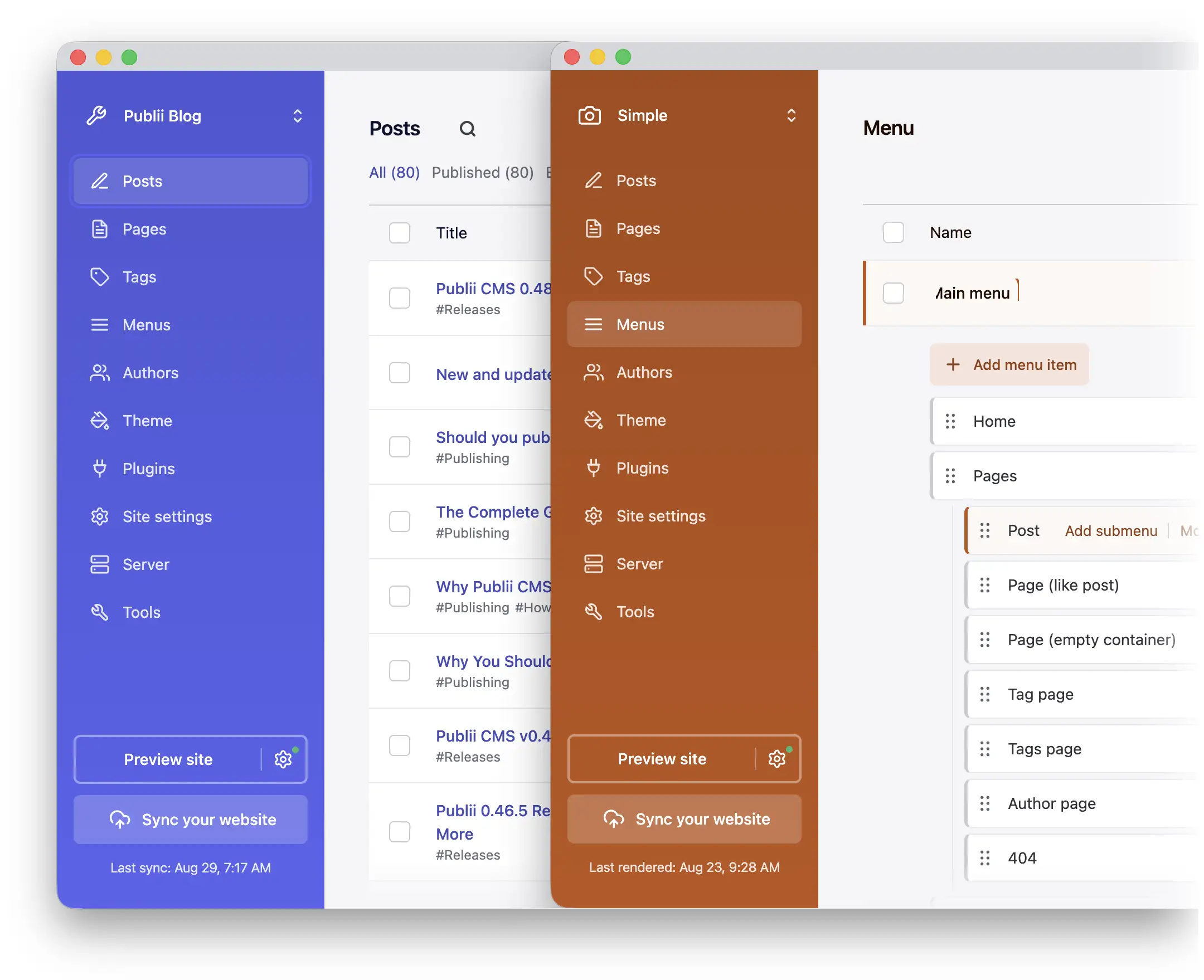
Open another website using its Open in new window action, or use Cmd/Ctrl + N to open a new window. Publii keeps each window connected to its own website. If you try to open a site that's already in use, the app brings its existing window to the front.
We've also rebuilt the application menu for macOS, Windows and Linux. From it, you can create posts and pages, generate previews, synchronise a site and open settings. Shortcuts and menu placement follow each platform's conventions, and the available commands follow the active window.
Logs are now separated by website, too, so synchronising one site won't overwrite the logs you're checking for another. The Log viewer shows the current site's logs alongside shared application logs.
Preview your website through a local server
Previous versions opened previews directly from your computer using file:/// addresses. That could produce a frustrating result: a page looked fine after publishing, but a script, resource or embedded video didn't work in its local preview.
Publii now starts a local web server and opens the preview through an HTTP address. The site's files share a local origin, which avoids the CORS restrictions associated with loading local files directly. Embedded videos also get the HTTP page context required by YouTube. Videos that failed because of the old file-based preview can now play.
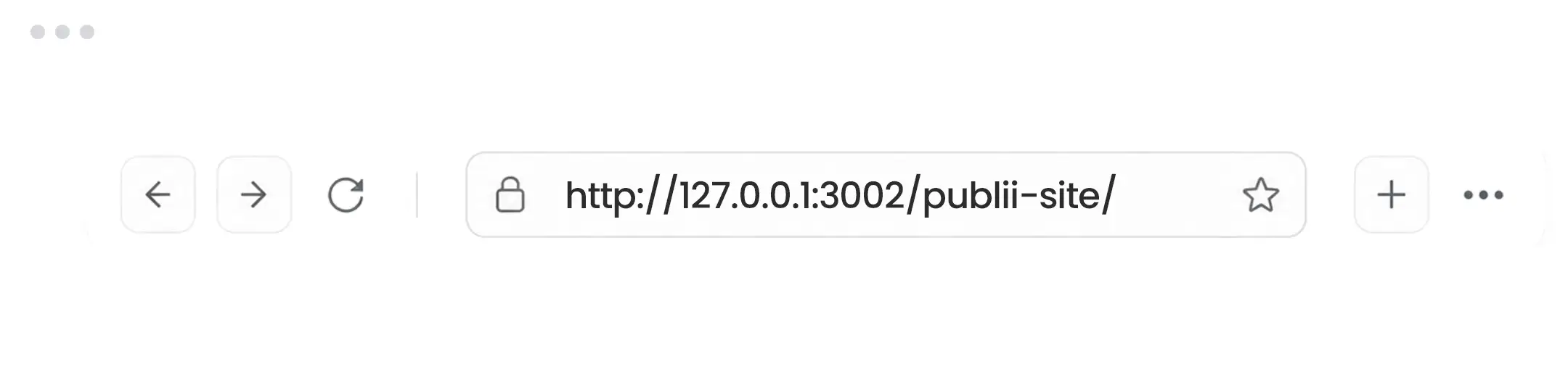
The server starts automatically with the first active preview and stops when the last one is disabled. It runs on your own computer and is available only there. There's no separate server to install or configure.
You can keep previews of several websites active, manage them from the Local preview panel, and clear generated preview files when you want to recover disk space. Advanced settings let you choose a port and add supported file types. Pretty URLs work here too, so preview addresses more closely match those on the published site.
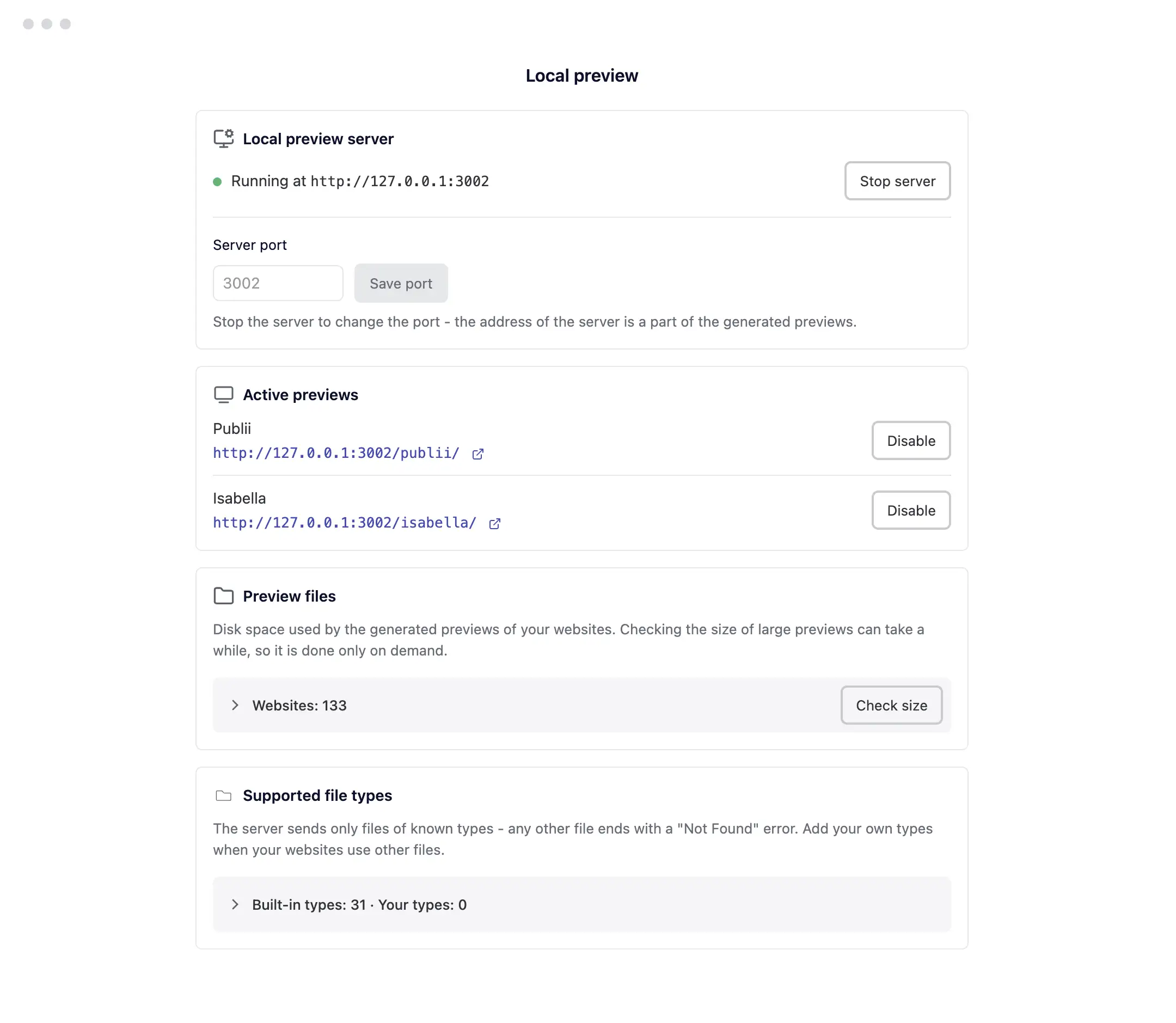
Preview files now stay inside each website's folder. The former custom preview location setting has been removed; if you used it, Publii explains the change and leaves the old files for you to remove manually.
Bring more of your WordPress website into Publii
Moving a website involves more than copying its posts. Navigation, images, internal links and SEO settings all need attention, so we've rebuilt the WordPress importer to handle more of that work.
You can start directly from the website creation screen by choosing Move from WordPress. Select or drop your WXR export file, and Publii analyses its contents before importing. It can also fill in the new site's name, description and author from the export.
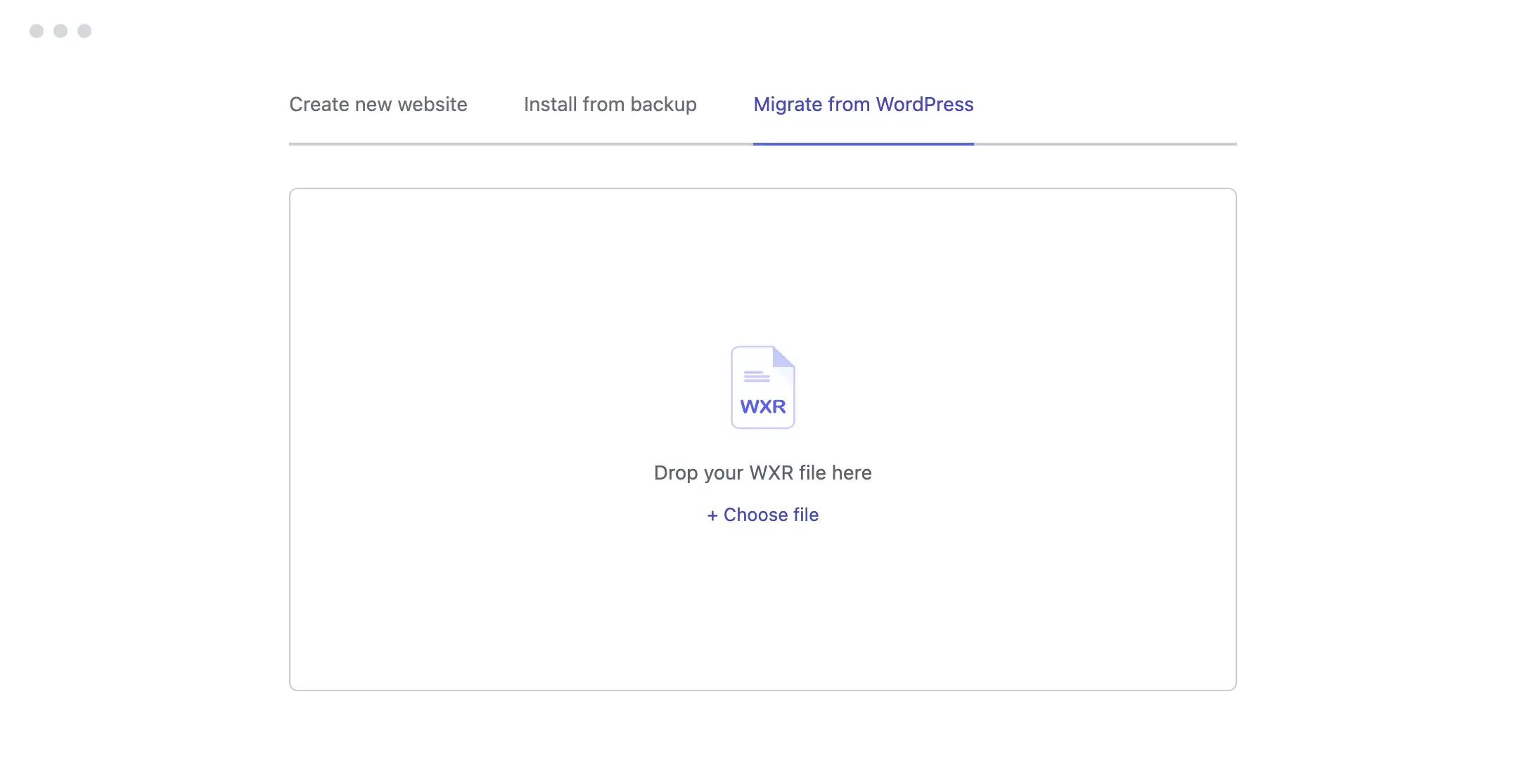
Publii can now import your navigation menus with their order and nesting intact. It connects supported links to the imported content and keeps custom links and their attributes. You also decide whether to retain WordPress slugs or generate new ones, and how to import categories and tags. Nested pages keep their parent relationships.
If your export contains data from Yoast SEO, Rank Math or All in One SEO, the importer can bring across compatible SEO titles, descriptions, robots settings, canonical URLs and primary categories. The available data depends on what the WordPress export includes.
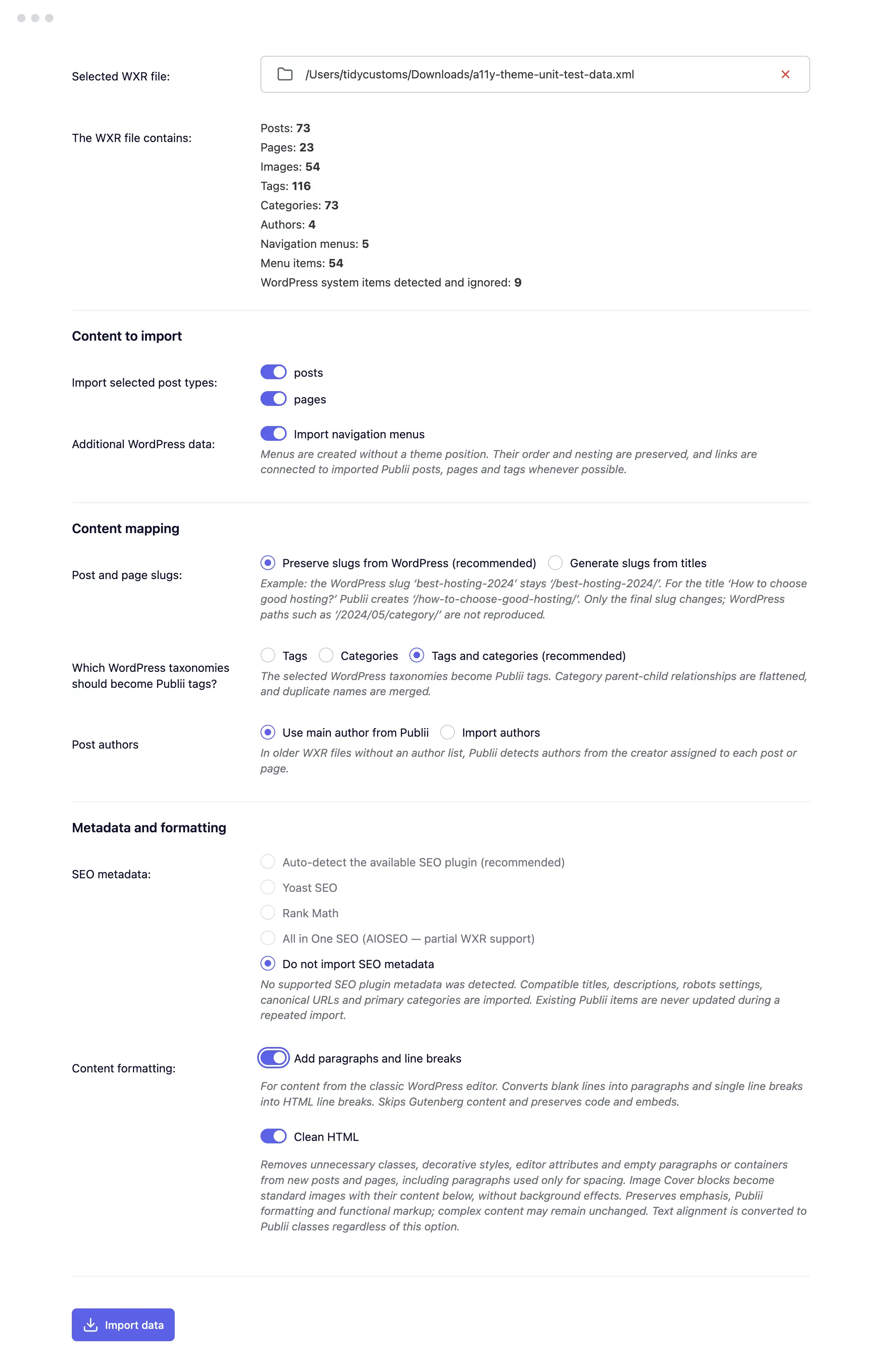
Supported WordPress galleries become editable Publii galleries. We've also improved the handling of captions, lazy-loaded images, YouTube, Vimeo and Gutenberg content. An optional HTML cleanup removes supported WordPress-specific formatting and leaves content alone when it cannot safely convert it.
After the import, a report identifies failed image downloads, unsupported shortcodes, dynamic blocks, unresolved links and other items that need your attention. It remains available for that website after restarting Publii.
The report also generates a WordPress-to-Publii URL map to help you prepare redirects. Check your hosting provider's required syntax before applying it.
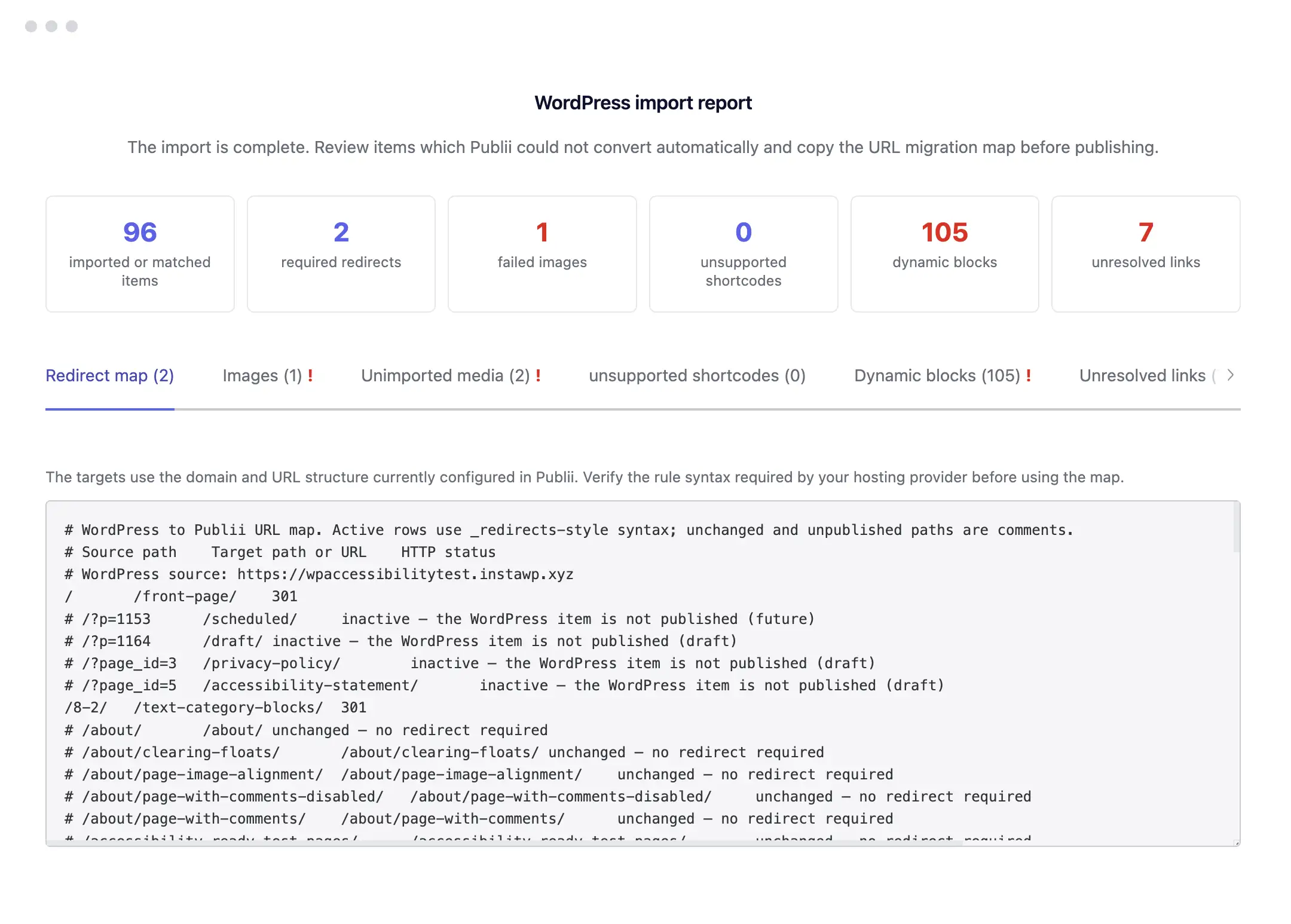
On a repeat import, Publii updates previously imported menus without duplicating posts or pages. It leaves your existing content and manually edited SEO values unchanged.
AVIF conversion and safer thumbnail generation
Image conversion now gives you a choice of WebP, AVIF or No conversion. AVIF includes quality, lossless compression and compression effort settings, while your existing WebP configuration is retained.
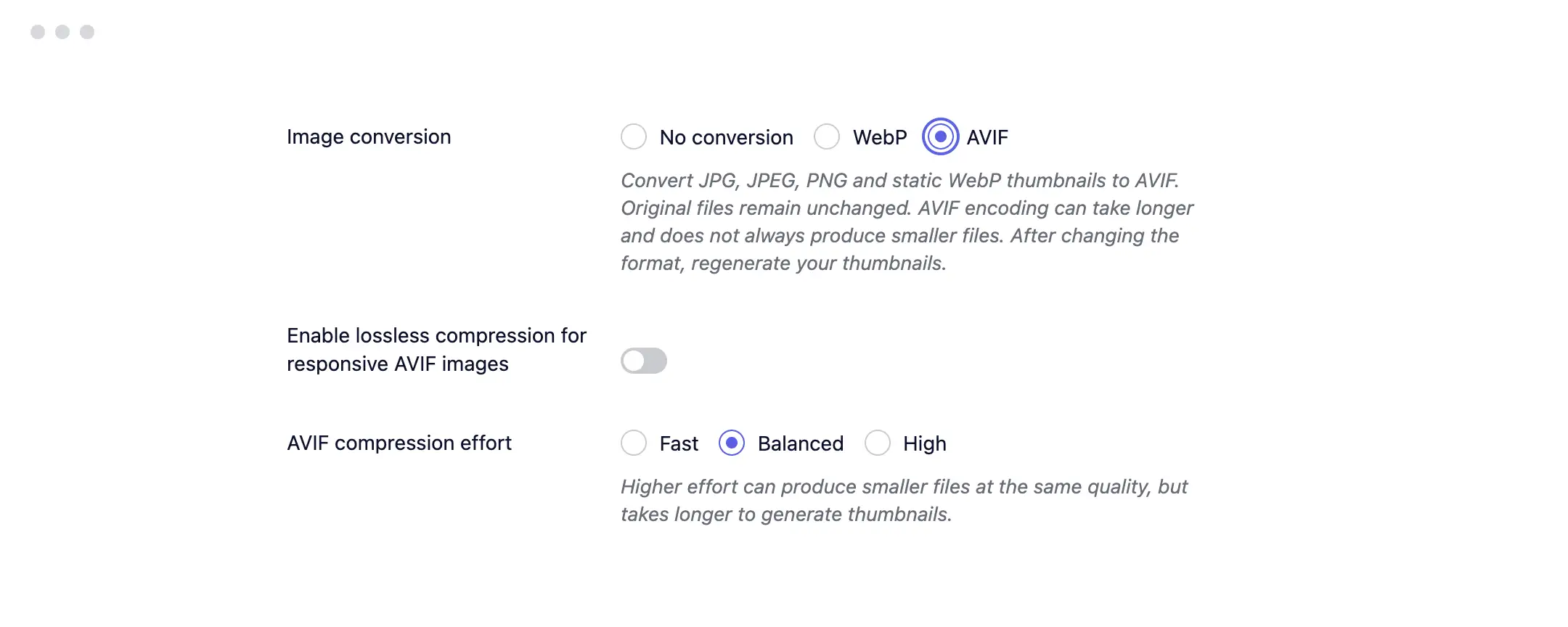
AVIF support covers thumbnail generation and regeneration, responsive images, previews and theme image options. Conversion also includes gallery thumbnails, and your original image files remain unchanged. We've updated image processing and corrected dimension handling so AVIF images receive the appropriate width and height values.
You can now leave the thumbnail regeneration screen and return to the current progress, with an image count, percentage and estimated time remaining. Publii lists any images that failed and gives you access to the relevant logs.
Cancelling regeneration is safer: new thumbnails are written through temporary files, so interruption doesn't leave partially written images. Restarting waits for the previous process to finish, and an image disappearing during regeneration no longer blocks the whole operation.
A rebuilt menu editor and consistent action menus
In the rebuilt Menus screen, expand a menu to see its items, rename it directly in the list, and check or change its assigned theme position. Publii marks menus that have no assigned position.
Drag and drop now uses dedicated handles. Moving an item horizontally lets you change its nesting, and improved drop areas make it easier to place items at the end of a submenu. You can also add submenus, duplicate items, hide them or move them through the available actions. Labels identify hidden items and targets that are drafts or unavailable.
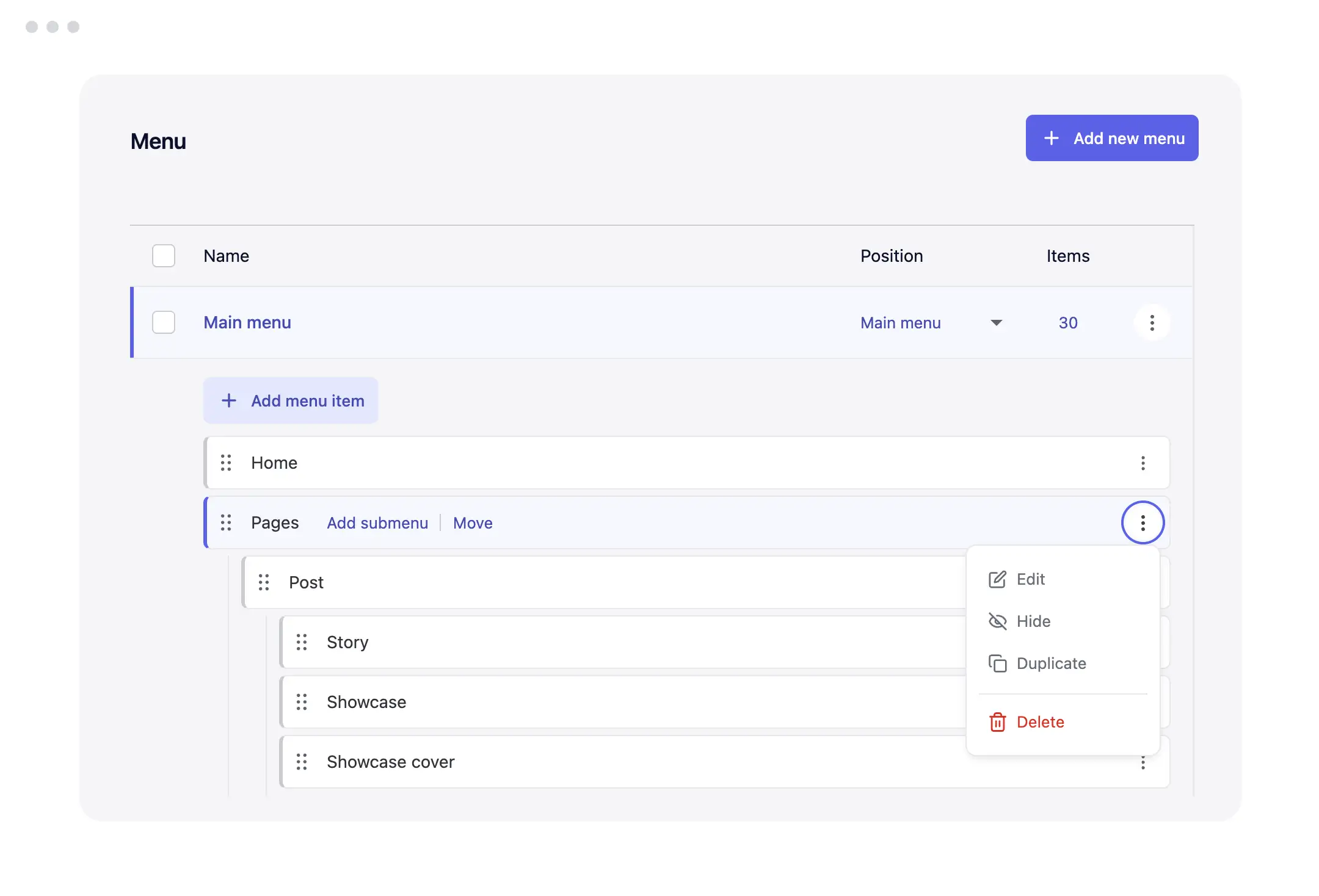
We've redesigned the context menus and added them to more places across the app, including content lists, authors, tags, files and plugins. They share a consistent appearance, keep actions close to the item you're working with and support keyboard navigation.
Selected posts, pages, tags and authors in multiple-selection controls can also be reordered using drag and drop, the keyboard or an action menu. This is useful wherever a theme or plugin uses the selected order to display content.
More capable editors and link tools
The WYSIWYG editor now uses HugeRTE, replacing TinyMCE 5. We've moved Publii's custom integrations away from direct patches to the old editor and retained compatibility support for existing editor configuration and script filenames.
The migration also includes Publii's own table of contents integration, with readable heading anchors. Manually assigned heading IDs are preserved.
Some of the most useful editing changes are outside the main post editor. Rich-text fields in author descriptions, tag descriptions and theme settings now offer the full Publii link dialog. You can choose a post, page, tag, author or file directly, edit an existing link and use the inline formatting toolbar when selecting text.
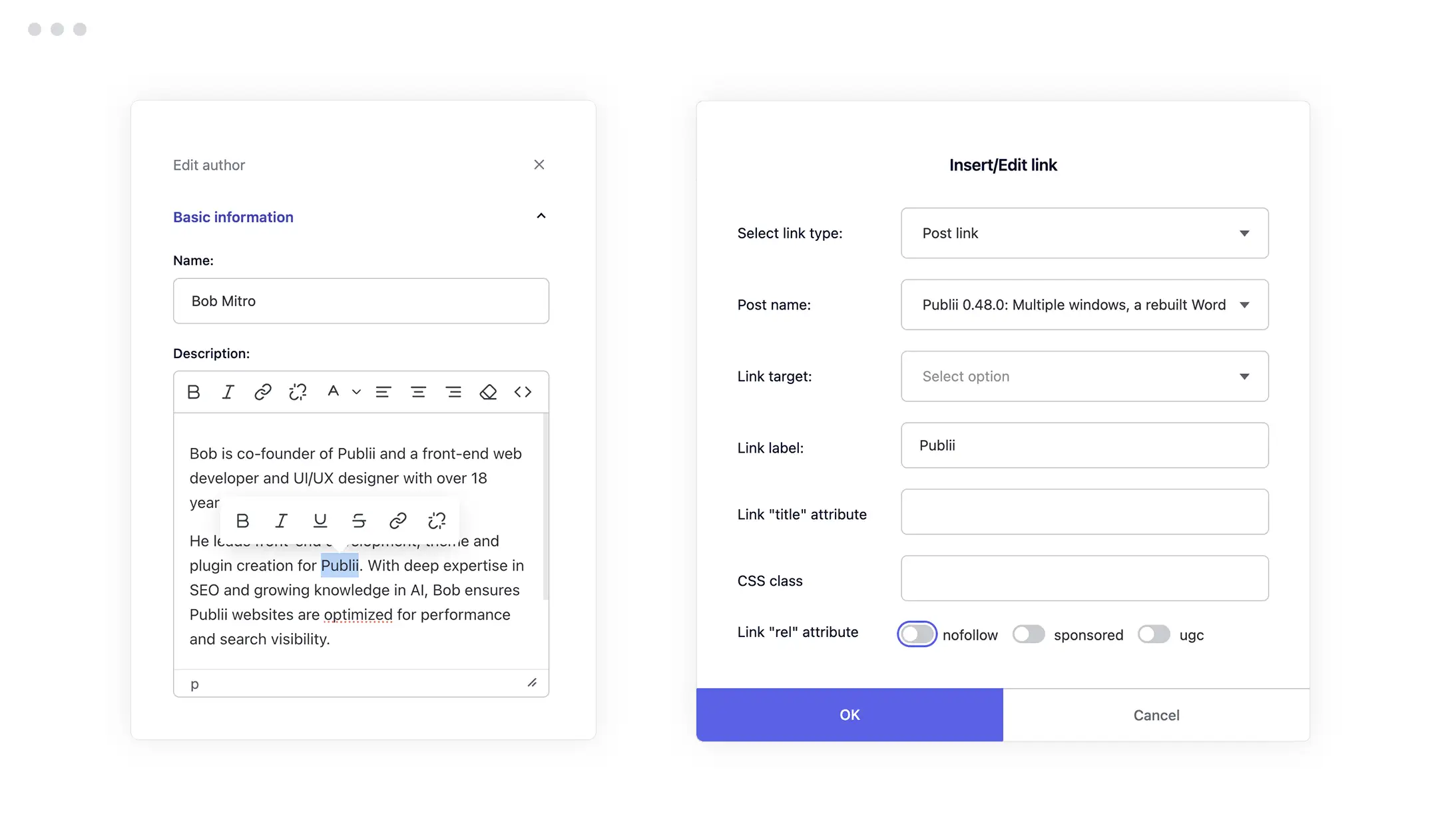
Link validation now requires a destination before accepting an internal link. Formatting and undo behaviour have also been improved when editing links in these smaller editors.
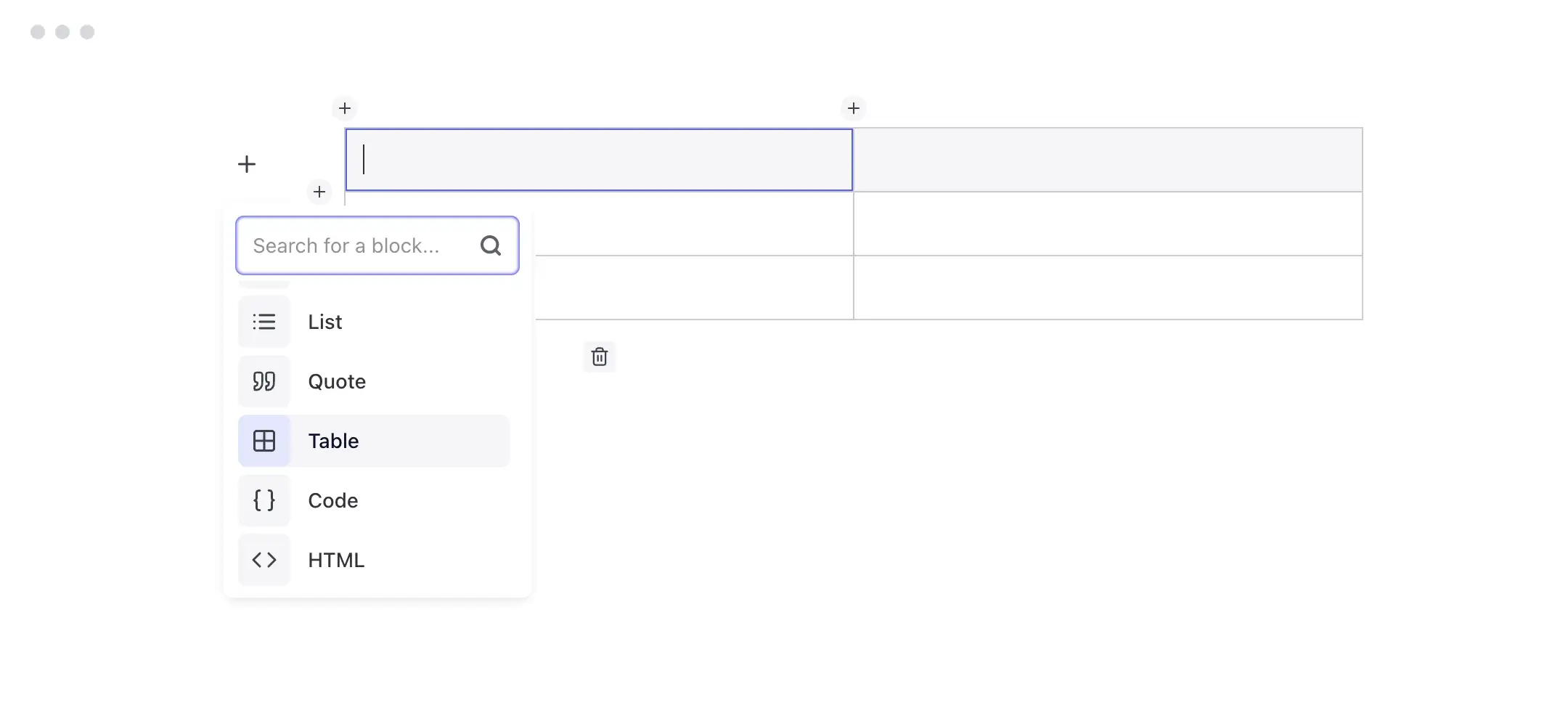
For the Block Editor, we've added a Table block. The WYSIWYG editor receives fixes for gallery undo and redo, image editing, special characters in link titles and floating toolbar positioning. Embedded iframe markup is handled more consistently in the editor, preview and generated site, and double-clicking an iframe, video or audio embed opens its editing dialog. YouTube playlist URLs are also parsed correctly.
Easier file, theme and plugin management
File Manager gains new actions for replacing and duplicating files, while Site Settings brings theme selection, installation and updates into one place. Plugins now have their own sidebar entry, with search, filters and bulk controls for the current website.
More actions in File Manager
File Manager now lets you replace and duplicate files, copy their URLs or local paths, and resolve filename conflicts during uploads. Upload progress is clearer, the folder bar and empty state have been refined, and drag and drop is limited to the file area.
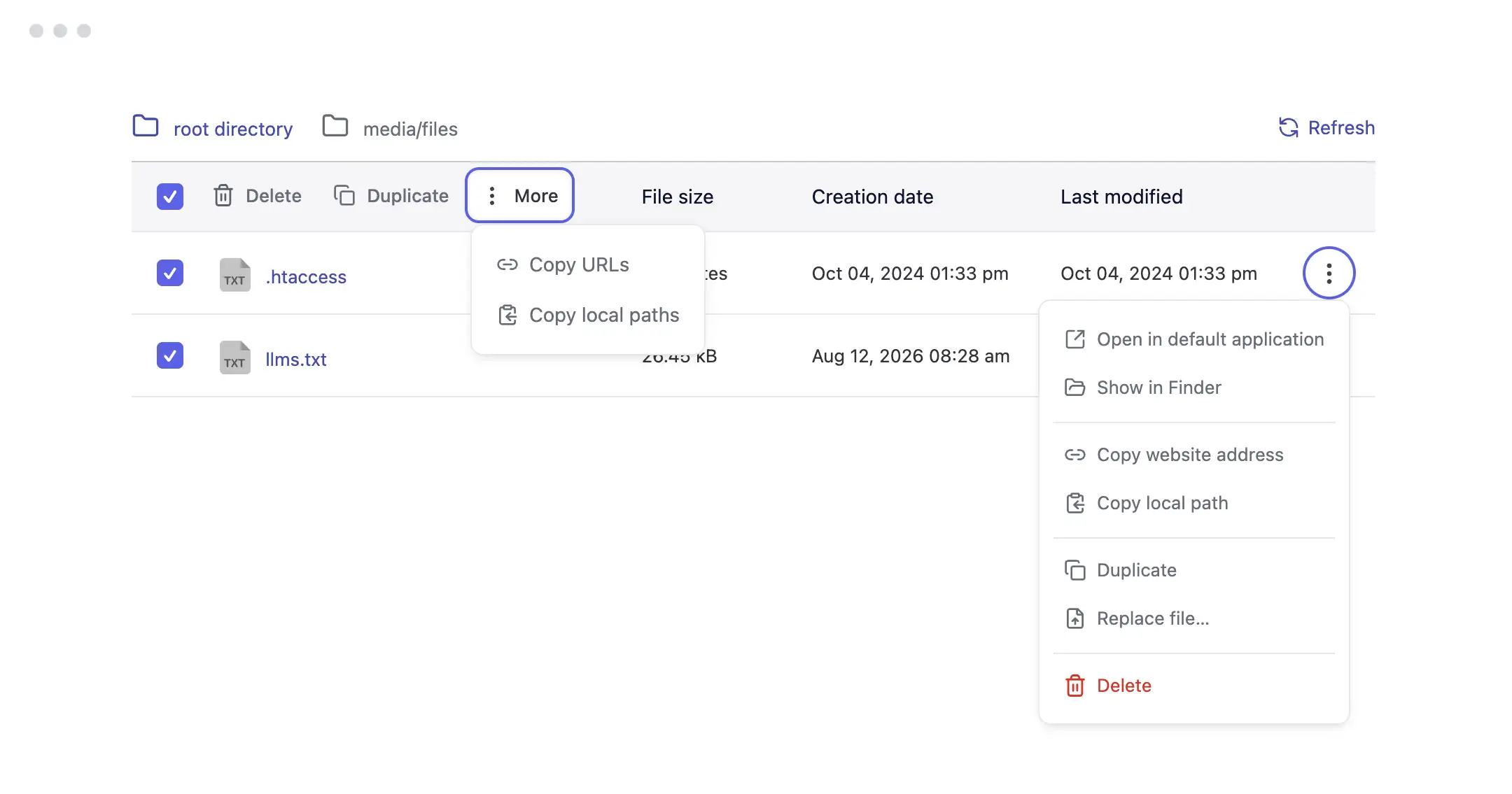
File Manager also warns when an uploaded file could be overwritten during site generation because its name conflicts with a file generated by Publii.
Clearer theme selection and updates
The Theme field in Site Settings now shows the current theme and version, available updates, themes installed on the website and those in your theme library.
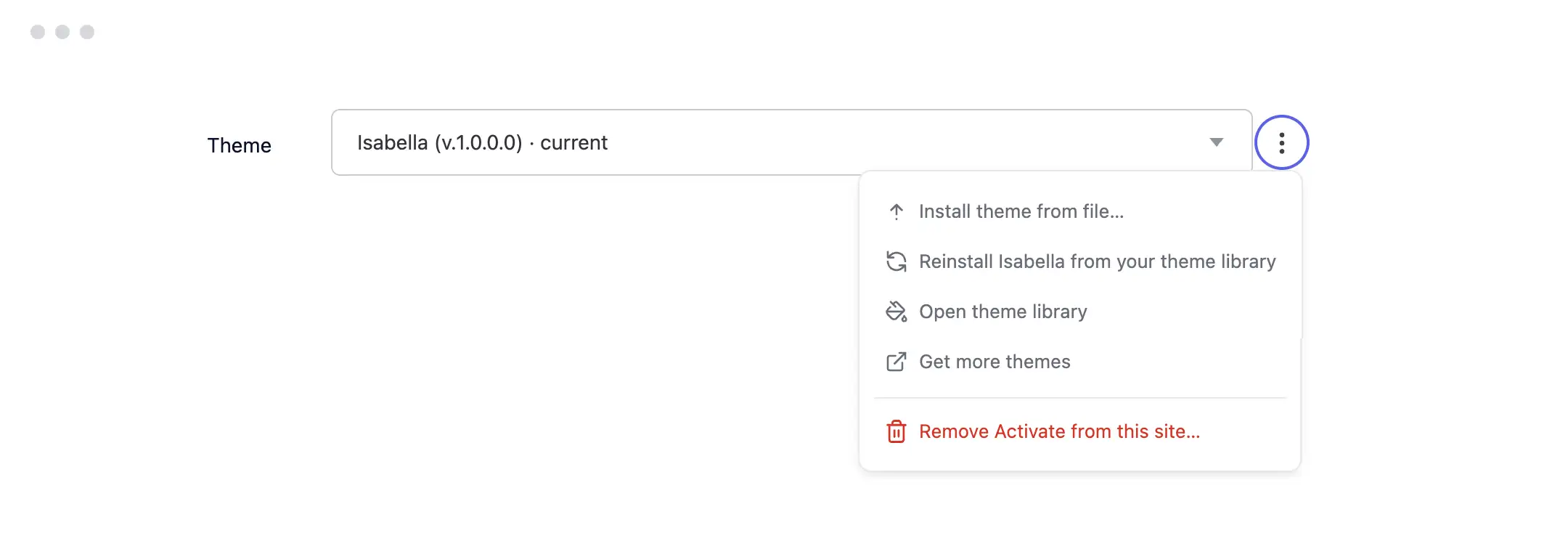
You can select an update from the library, install a theme archive from the same area, or access the other theme actions without first navigating to App Settings. A selected theme update is applied when you save the settings. If a newer release is available online, the interface links you to the appropriate download location.
Separate Tools and Plugins screens
Plugins have moved out of Tools and now have their own entry in the sidebar. The redesigned Plugins screen lets you search, filter and sort the list, and enable or disable plugins in bulk for the current website. Installation, updates and removal remain in App Settings.
To support work across multiple windows, Publii blocks updating or removing a plugin while its settings are open in another window. Settings saves are also tied to the correct website and editing session.
Accessibility and interface improvements
We've improved keyboard operation for buttons, split buttons, switches and action menus, with visible focus states and more consistent behaviour. Import report tabs also support keyboard navigation and respect the system's reduced-motion preference.
Tooltips now have a consistent appearance and short explanations of actions and statuses. You can turn them on or off in App Settings. Upload and import buttons keep their size while showing progress, so the form doesn't shift during an operation.
The underlying design system now uses shared rules for colours, spacing, typography and components across light and dark modes. We've also refined the macOS title bar, clarified English and Polish interface text, and added a German translation.
The Notification Center can now identify discontinued themes and plugins. Its bell indicator clears when you visit the Center and returns when new information arrives; unread counts and the existing Mark as read action keep their separate behaviour.
Other improvements and fixes
This release also addresses the following issues:
- Image fields and featured images: improved upload validation, replacement and recovery after a failed upload. Discarding changes no longer removes images still in use, and saving a post or page preserves the exact filename of its existing featured image.
- Internal links: corrected link resolution in theme options, Custom HTML, generated CSS and the Block Editor, including author and front-page links. Values containing quotes, backslashes or newlines are handled more reliably.
- File selection in link dialogs: link selectors hide folders when they cannot browse their contents, so folders no longer appear as unusable link destinations.
- Custom post options: fixed values becoming associated with the wrong fields after a theme's option definitions changed.
- Moving website folders: Publii protects existing destination files, checks naming conflicts and removes source files only after a successful move. If the configured website folder is missing, a dialog lets you locate it again.
- FTP, SFTP and GitHub: improved connection handling during synchronisation, including keep-alive support in the alternative FTP client, and corrected SFTP and GitHub connection tests.
- Author pages and structured data: corrected author post counts so empty author pages aren't generated from unrelated content. An author's Website field is now included as
author.urlin Article structured data when available. - New website URLs: Pretty URLs are enabled by default for newly created sites, including those created through WordPress import. Existing website settings remain unchanged.
- Stored credentials: deleting a website also removes its associated credentials from the operating system's credential store.
- Author updates: corrected an internal author-update action that could produce console errors.
Changes under the hood
We've also updated the application runtime and reduced the number of dependencies needed to build and maintain Publii:
- Updated Electron to the 43 series, together with the SFTP and image-processing libraries.
- Added a Content Security Policy for the application and stricter directory-name validation when installing themes, plugins and language packs.
- Replaced Clean CSS with Lightning CSS for stylesheet minification and support for modern CSS syntax.
- Replaced keytar with
@napi-rs/keyringfor access to the system credential store, and updatedbetter-sqlite3, removing the separate WebAssembly database implementation on Linux. - Consolidated ZIP handling around
fflate, simplified HTML indentation and slug-related dependencies, and removed unused packages. - Replaced the application's SCSS layer with CSS and standardised the organisation of Vue components.
For theme developers, custom WYSIWYG configuration and script files should now use the wysiwyg.override.json and wysiwyg.script.js names. The legacy tinymce.* filenames remain supported in this release with deprecation warnings.
Existing logs from before the move to per-site logging remain on disk but are no longer listed in the new Log viewer.
Publii Bugfix 0.48.1
This maintenance release addresses issues reported after Publii 0.48.0, including unexpected editor scrolling and missing custom fonts. It also simplifies the synchronization screen, adds an option to use file-based previews, and provides clearer guidance when saved server credentials cannot be read.
- Custom fonts in theme overrides: Fixed a regression that prevented fonts stored only in a theme’s override directory from being included in the generated website when dynamic assets were enabled. (ref. GitHub Discussion #2717)
- Local preview option: Added an option to disable the local preview server and open previews using
file:///URLs. (ref. GitHub Issue #2718) - Video embedding and playback: Fixed URL-based embedding of YouTube, Vimeo, and Dailymotion videos in the WYSIWYG editor. Also preserved the structure of existing embeds when editing them, prevented unwanted restrictions from being added to embedded players, and restored YouTube playback in the local website preview. (ref. GitHub Discussion #2717)
- Saved server credentials: Added a one-time warning when Publii detects that saved credentials cannot be read after upgrading. The message directs affected users to Server Settings to re-enter and save their credentials.
- Synchronization progress: Replaced the circular animation on the main synchronization screen with a simpler progress bar and clearer indicators for each stage.
- WYSIWYG editor focus: Fixed an issue that caused the editing screen to scroll to the top when clicking outside the editor’s content area.
You can download Publii for macOS, Windows and Linux. Thank you to everyone who reported bugs and shared suggestions for this release. If you find an issue or have an idea for a future update, please share it on our community forum.